
Training Sets
The Training Sets page lets you upload labelled datasets of past Trustfull lookups to measure how accurately the model's scores matched real-world outcomes for your traffic. Each training set is the input for generating Model Insights, a performance analysis of your scoring model.
How to Upload a Training Set
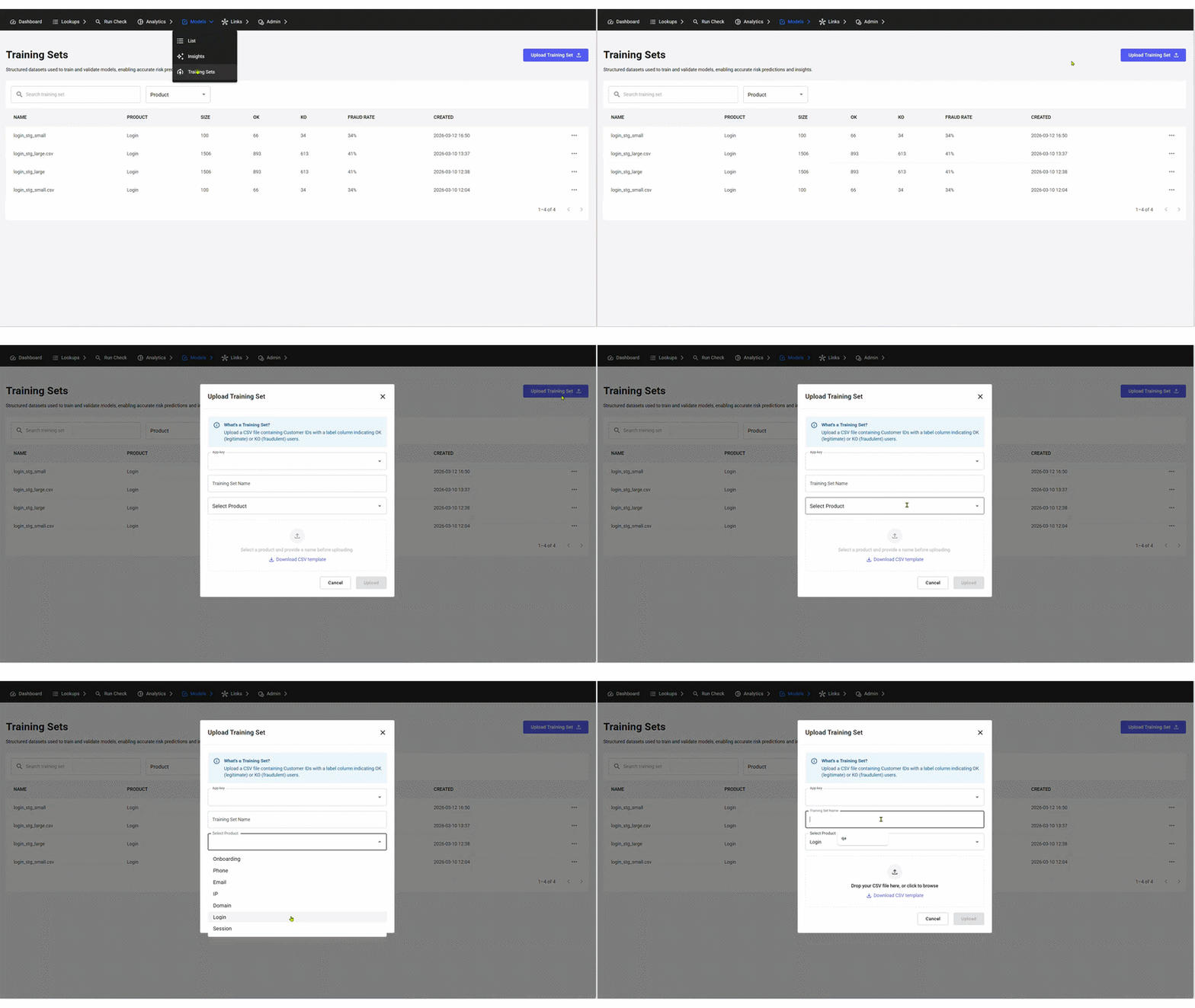
Uploading a training set takes three steps: prepare a CSV file with your labelled lookups, fill in the required fields in the upload modal, and validate the file before confirming the upload.
Prepare your CSV
The CSV must contain lookups from a single App Key and a single product. Each row represents one past Trustfull lookup and requires two columns:
customer_id: the identifier used in the original lookuplabel:okfor confirmed genuine customers;koconfirmed fraudolent customers
You can download a prefilled CSV template from the upload modal by clicking Download CSV template.
Open the upload modal and fill in the required fields
Click Upload Training Set in the top right corner. In the modal, provide:
- App Key: the app key used to run the original lookups
- Training Set Name: a label to identify this dataset in the list
- Select Product: the product the lookups were run against (e.g. Session, Phone)
Once all fields are filled, select your CSV file from the upload area.
Validate and upload
After selecting your file, validation runs automatically. If the file is valid, a confirmation banner shows the total record count along with the OK and KO breakdown.
Click Upload to complete the process. The training set appears in the list with its name, product, size, OK/KO counts, fraud rate, spam detected, and creation date.
Spam Detection
Some records can never belong to a genuine customer: a disposable phone number or an invalid email format rules it out on its own. Trustfull flags these as spam when the training set is processed, and the Spam detected column shows how many there are and what share of the set they represent, for example 128 (2.6%).
How a record is flagged
A record is flagged as spam when it is labelled ok and at least one of these is true:
| Signal | Flagged when |
|---|---|
| Email format | The email address has an invalid format. |
| Email disposable | The email address is disposable. |
| Email reputation | The email address is known for spam activity. |
| Phone format | The phone number has an invalid format. |
| Phone disposable | The phone number is disposable. |
A record labelled ko is never flagged as spam. Fraudulent customers are exactly what you want the model to learn from, including the ones using a disposable email or phone number.
Why it matters
Records like these make the model look worse than it is at telling real customers apart, and inflate metrics with traffic that was never real business. Set them aside from the insight itself with a single switch, and you measure performance on the customers you actually care about. See Insights.
Which products does spam detection cover?Onboarding, Phone and Email. A set flagged as Phone is checked on phone signals only, one flagged as Email on email signals only. Other products show
-.
Why does my older training set show "-" instead of 0?A dash means never measured, zero means measured and clean. Sets uploaded before spam detection existed show
-. Upload the set again to get the metric.
Next: Generate Insights or Create a Model
Once a training set is uploaded, you can use it in two ways directly from the list. Click the context menu on any training set row to:
- Run Insights: generates a performance analysis of how well the active model's scores matched the labelled outcomes in your dataset. Results appear in the Model Insights page.
- Create Model: generates a custom model with rules automatically derived from the fraud patterns in your data. The model appears in the Model Library ready for review and publishing.
Updated 1 day ago