
Billing
The Billing page is where you manage your Trustfull balance and payment settings. To access it, click your name in the top-right corner of the dashboard and select Billing from the menu.
There are two ways to add funds to your balance: a one-off Manual Top Up, and Auto Top Up, which recharges your balance automatically when it drops below a threshold you set.
Manual Top Up
To add funds manually, choose a preset amount (€500, €1000, €2500, or €5000) from the Top Up Balance section and click Add Funds. You will be redirected to Stripe to complete the payment. Once confirmed, your balance updates immediately while the transaction may take a few minutes to appear in the Payment History.

All payments are processed and managed by Stripe. VAT is applied automatically based on your billing country.
Auto Top Up
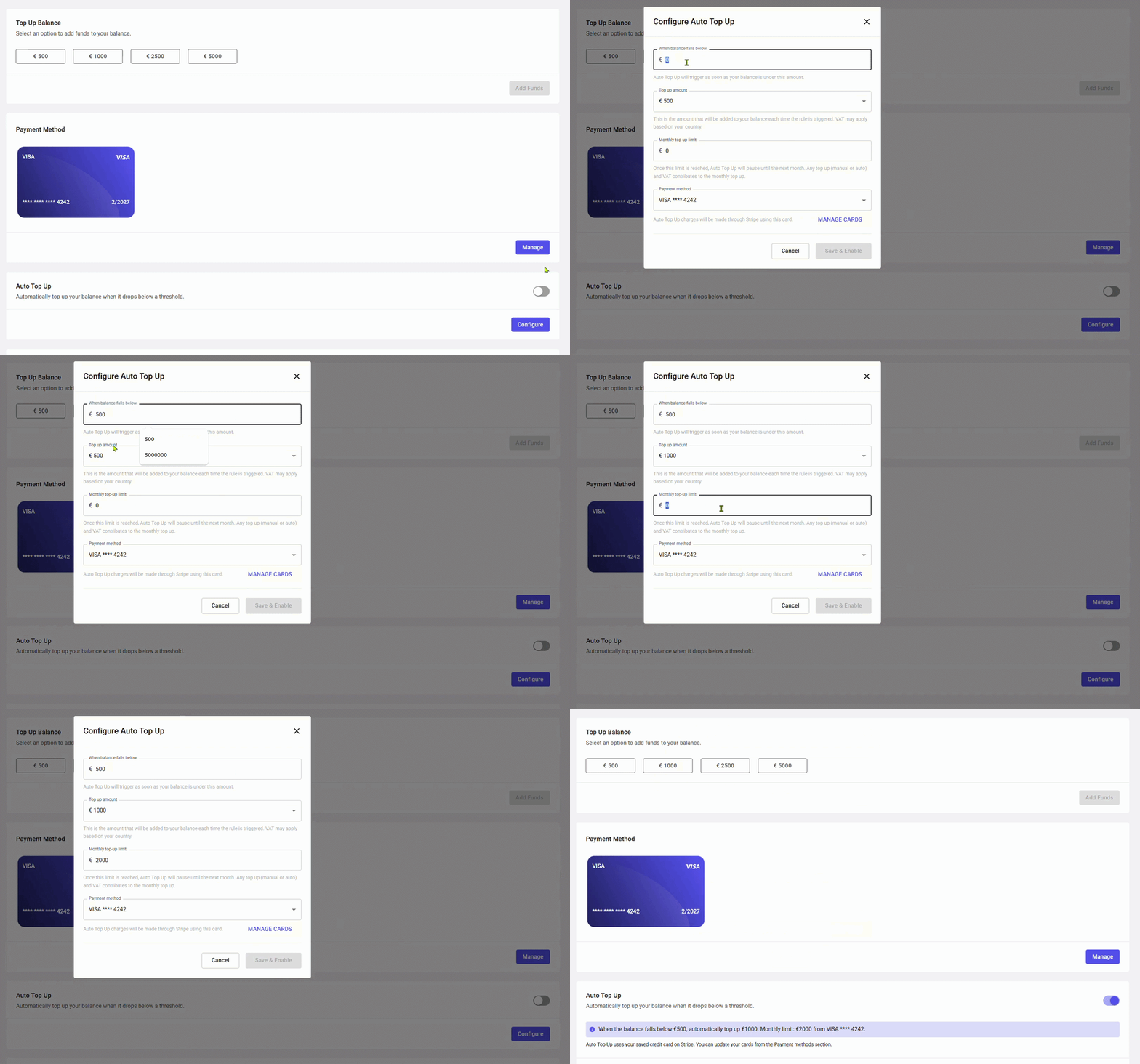
Auto Top Up automatically recharges your balance whenever it drops below a threshold you define — so your API keys stay funded and requests are never interrupted. Each time the rule triggers, Trustfull charges your saved card and adds the configured amount to your balance.
Prerequisites
Before you can activate Auto Top Up, you need to:
- Complete at least one manual top-up
- Add at least one valid credit card in the Payment Methods section — click Manage to add, update, or remove cards via Stripe. You can save more than one.
Until both conditions are met, the Configure button is disabled and the toggle is inactive.
Configure Auto Top Up
To set up Auto Top Up, click Configure (or the toggle). This opens the configuration modal where you define the rules that control when and how much to charge.
- When balance falls below: the threshold that triggers the top-up (e.g. €500)
- Top up amount: the amount added each time the rule triggers (minimum €500)
- Monthly top-up limit: the maximum total charged in a calendar month across all automatic top-ups. Once reached, Auto Top Up pauses until the next month. Manual top-ups also count toward this limit.
- Payment method: the card to charge for automatic top-ups
Click Save & Enable to activate. The Auto Top Up section will then show a summary of your configuration.
If you remove the card assigned to Auto Top Up, the feature disables automatically and shows the message: "The configured card is no longer available. Please update your payment method." Open Configure to assign a new card and re-enable.
Payment History
To see everything you have paid, open the Billing page and scroll to the Payment History table at the bottom. It lists every payment, manual and automatic, with the payment date, the valid from and expiration dates, the amount, and the source.
Invoices are issued on request: open a ticket and the billing team sends it to you. The quickest way to open a ticket is the Ask AI button in the dashboard header, which starts a chat with the Trustfull assistant and can raise the request for you.
If you are using Trustfull at large volumes, contact us to discuss custom billing arrangements.
FAQ
How do I get an invoice?
Invoices are issued on request. Open a ticket and the billing team sends it to you. The quickest way is the Ask AI button in the dashboard header: it opens the Trustfull assistant, which can raise the ticket for you.
Do credits expire?
Credits have a standard validity of 12 months from the date of purchase and can be used to query any Trustfull API. If your contract specifies different terms, those apply.
What happens when an API key runs out of credit?
The API returns HTTP 402. Add funds from this page, or enable Auto Top Up so requests are never interrupted. See HTTP Status codes for the full list.
Can my balance recharge automatically when it runs low?
Yes — see Auto Top Up above. It requires one completed manual top-up and at least one saved card.
Where do I see what I have spent?
Every manual and automatic payment appears in the Payment History table on this page, with payment date, validity dates, amount and source. Individual receipts can be downloaded from the table.
Updated 9 days ago