
Models
The Models Library is where you create and manage all scoring models for your Trustfull products. It gives a full view of which models are active across products and allows building custom models.
Models Library Overview
The model list is split into two sections:
- Standard models: system defaults provided by Trustfull, one per product. Active by default and cannot be deleted.
- Custom models: models you have created. Each can be published to become the active model for its product.
The Active indicator shows which model is currently scoring live traffic for each product. Only one model can be active per product at a time.
Creating a Custom Model
There are three ways to create a custom model.
From Training Set
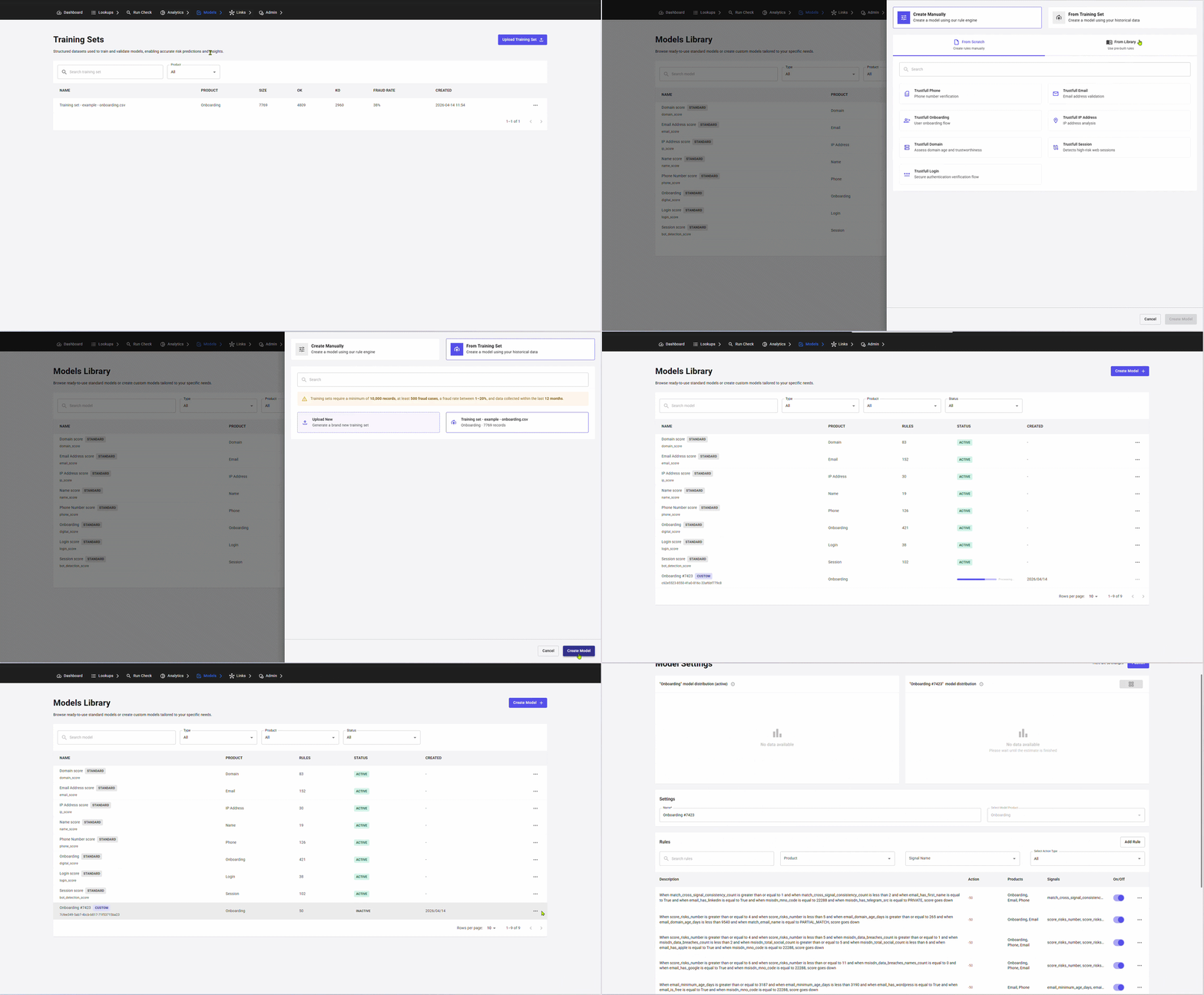
The fastest and recommended path to a model tailored to your data. Trustfull analyses a training set of your labelled historical lookups and auto-generates custom rules based on the fraud patterns in your data, no rule writing needed.
Requirements: the training set must contain at least 10,000 records.
- Click Create Model in the top right of the Model Library page
- Select From Training Set and choose the Training Set to use
- Click Create Model and the model will be generated in minutes
You can also start this flow from the Training Sets page: click the context menu on any training set and select Create Model. You will be redirected to Model Library with the training set pre-selected.
From Library
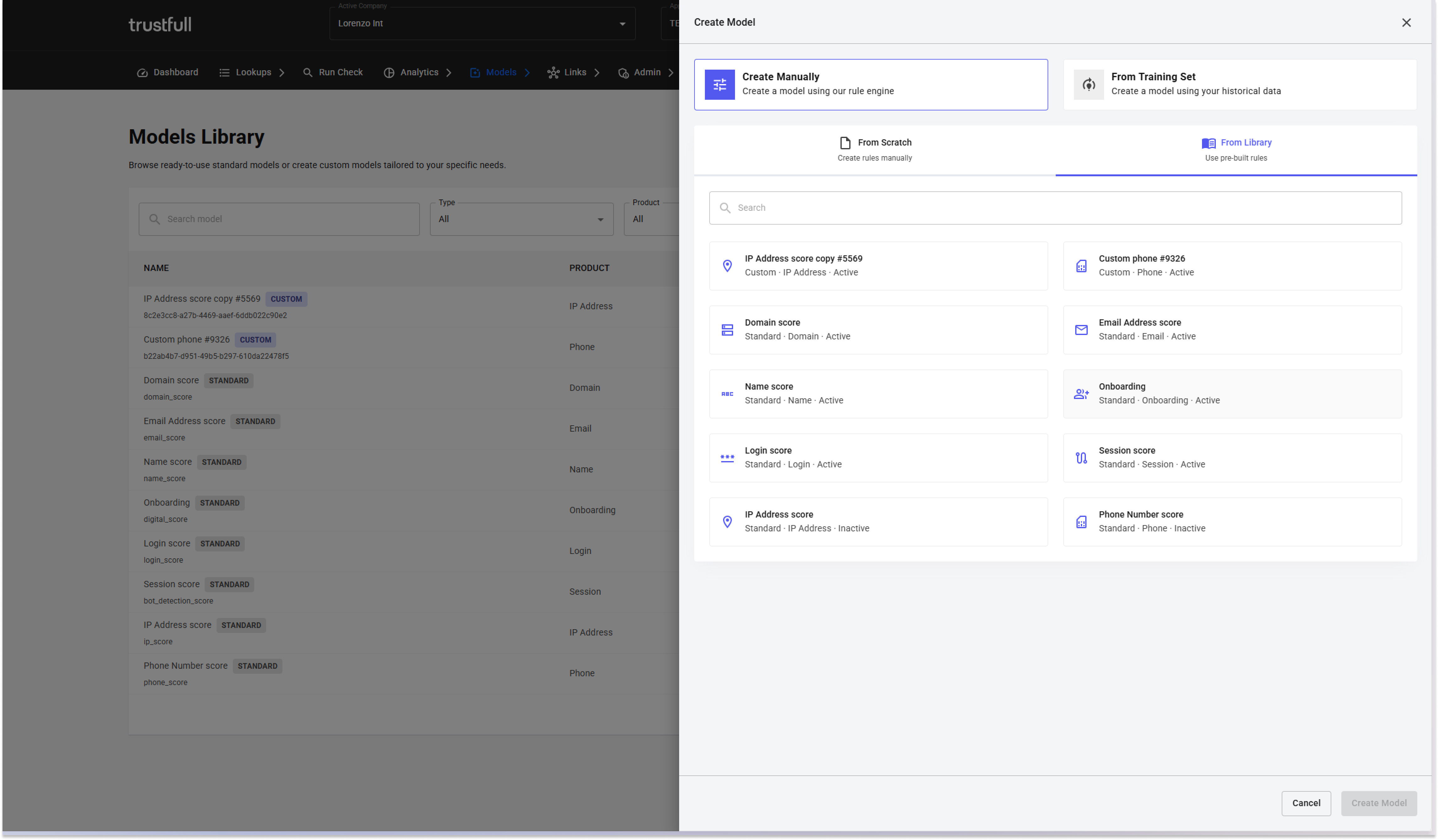
Copies an existing model (standard or custom) with all its rules pre-loaded, so you can build on top of an existing strategy.
- Click Create Model and select From Library or click Copy on any model row
- Select the model to copy
- Click Create Model and you are redirected to the model editor with all rules pre-loaded
The model is named as "[source model] copy #[ID]". Modify the rules and publish when ready.
From Scratch
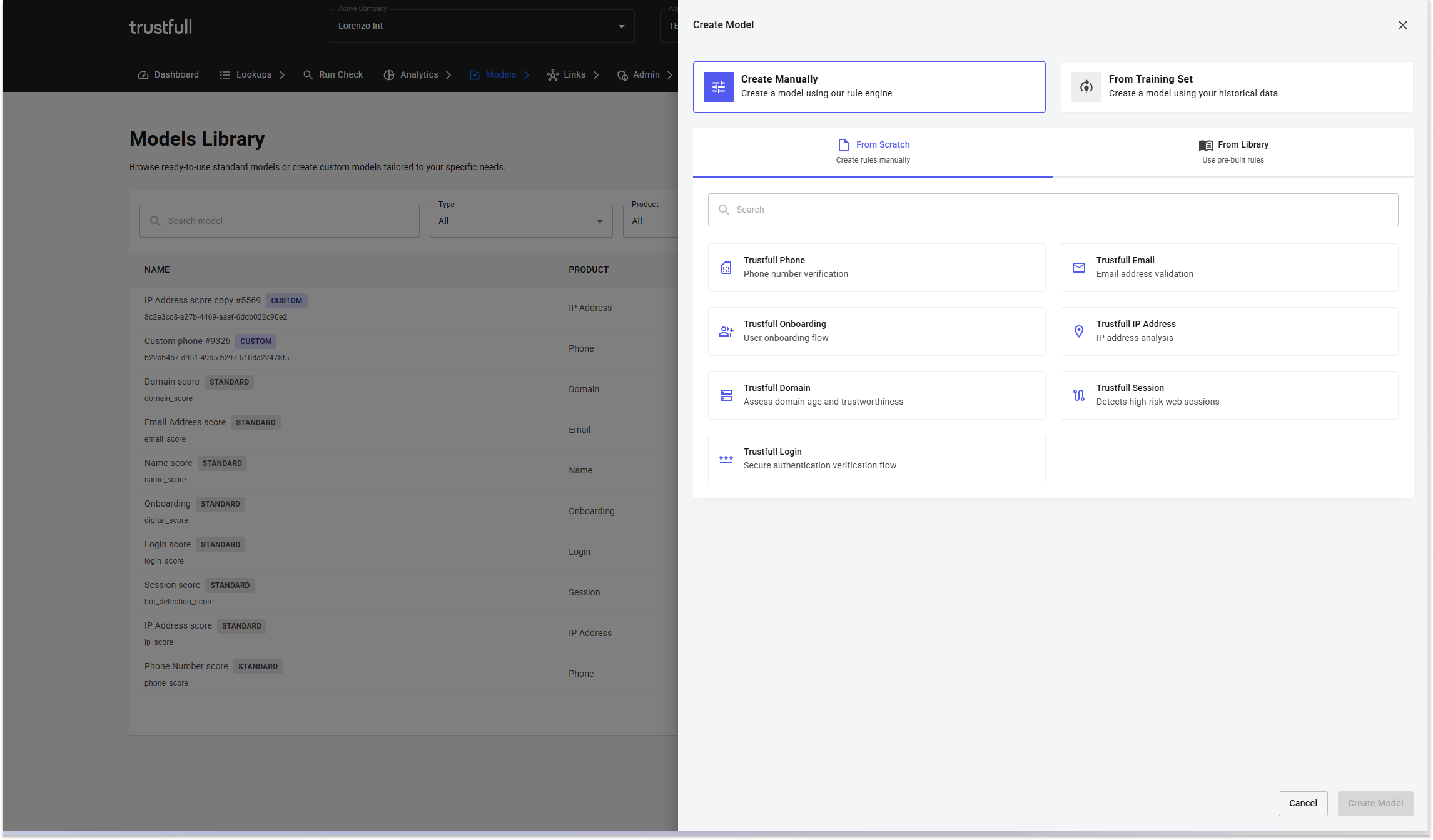
Creates an empty model with no rules. Use this when you want to define your scoring strategy from the ground up using the rule editor with autocomplete, a rule bank, and no coding required.
- Click Create Model and select From Scratch
- Choose the product
- Click Create Model and you are redirected to the model editor where you can create all the rules starting from scratch.
The model is named automatically as "Custom [product] #[ID]". Add rules and publish when ready.
Edit and Publish a Model
Edit Model
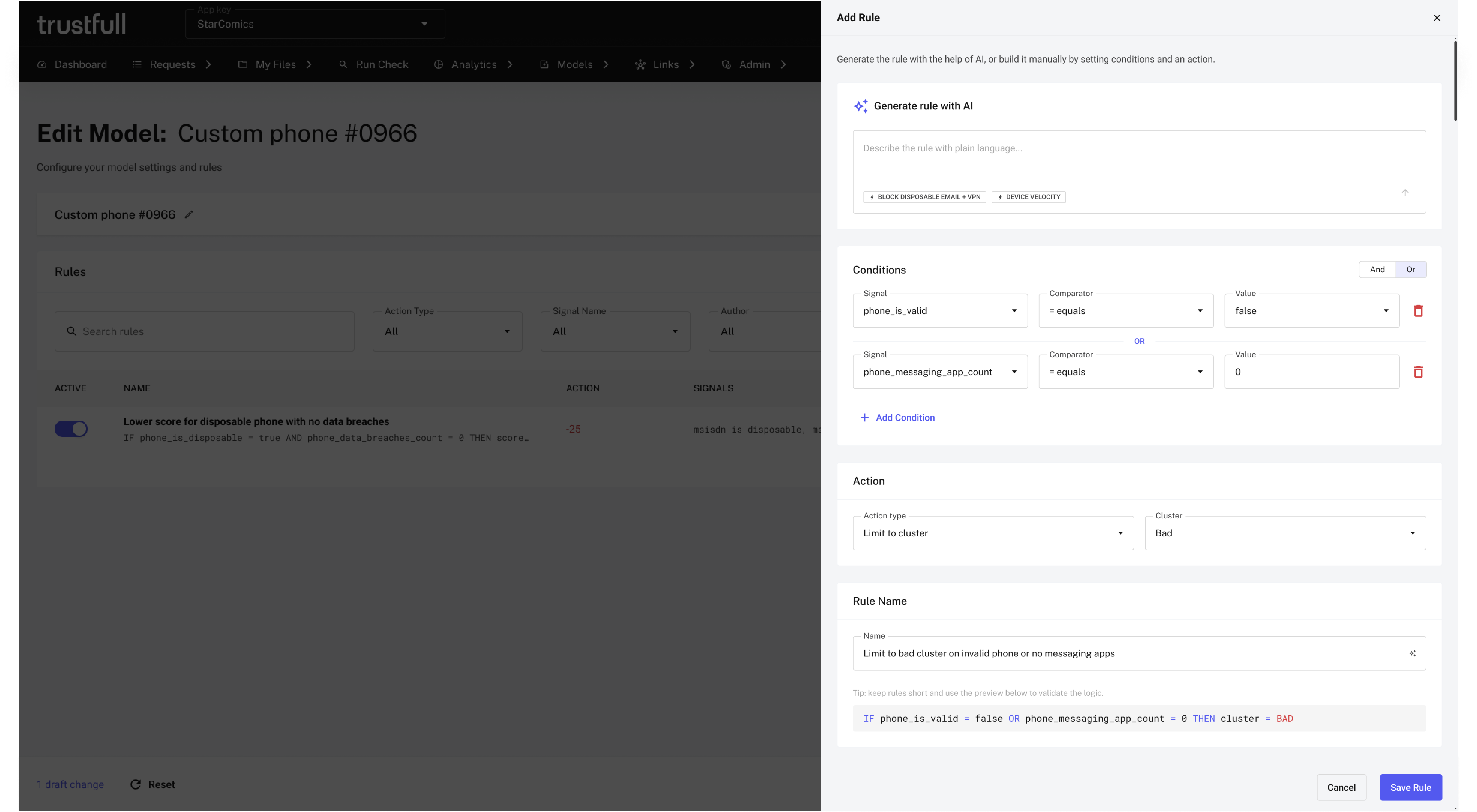
Every time a model is created or you click Edit on an existing model, the model editor opens. In this page you can add, remove, and toggle rules on or off.
Each rule is built from conditions and an action. For each condition you can select a signal from the fixed set of signals Trustfull retrieves for that product (NB you can find the explaination of each signal in each product's data schema eg Onboarding). You can create simple rules with a single condition, or combine multiple conditions using the AND / OR operator.
Once conditions are set, you define the action: the effect that triggers when the conditions are met. There are two effect types:
- Add/Remove points: adds or subtracts a weight from the score (e.g. -50 points if
phone_has_appleORphone_has_whatsappequals True) - Limit to cluster: caps the record at a specific cluster regardless of its score (e.g. limit to Moderate if a condition is met)
The rules list shows each rule's description, action weight, product, signals used, and an on/off toggle.
Compare with Active Model
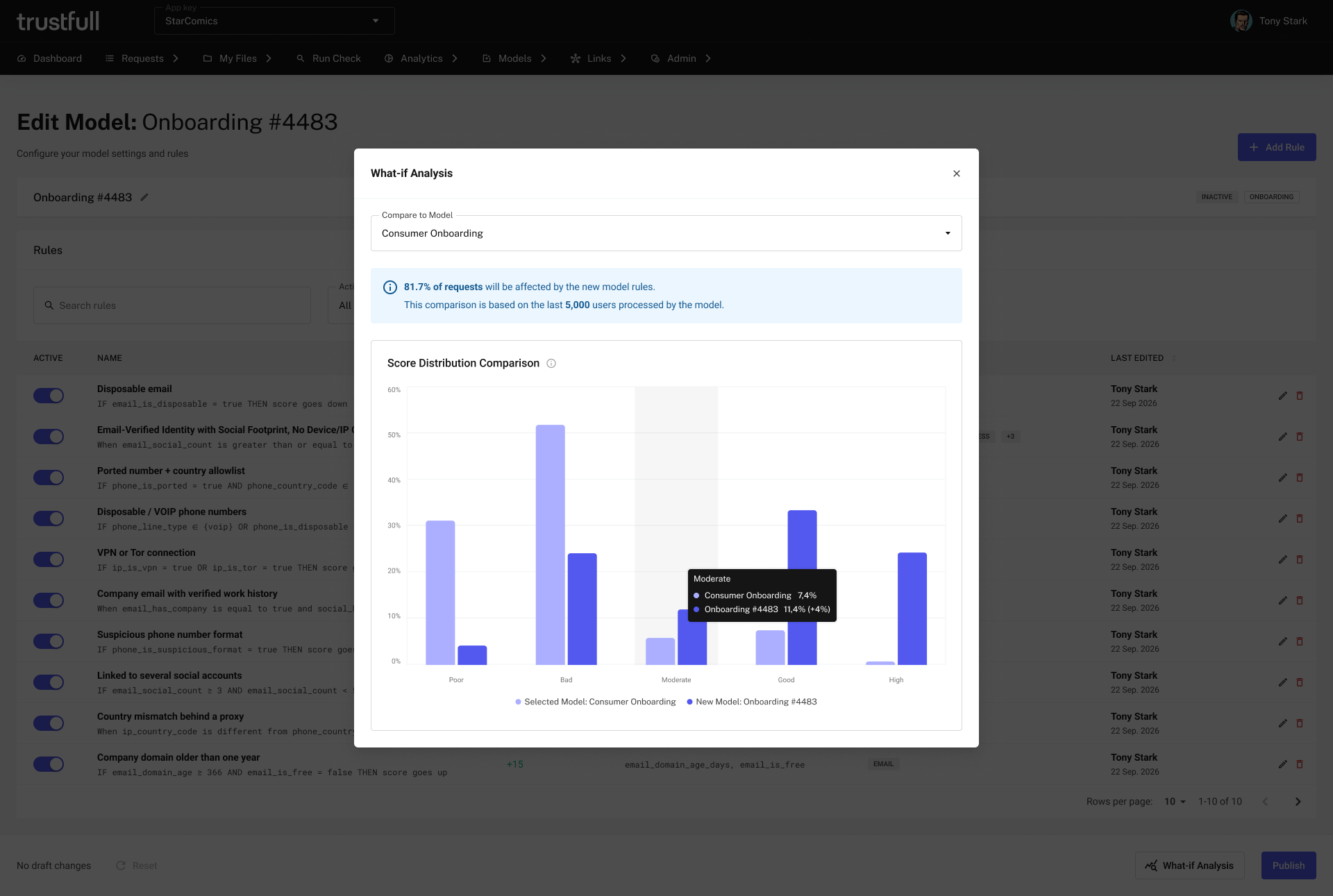
As you add or modify rules, two donut charts appear side by side: one showing how the currently active model scores your traffic, and one showing how your new model would score the same traffic. Both charts update in real time and are based on the last 5,000 lookups.
Each chart breaks down scores across the five clusters (High, Good, Moderate, Bad, Poor). The Variation column on the right highlights exactly how many records shifted between clusters compared to the active model — green arrows for records moving to safer clusters, red arrows for records moving to riskier ones.
Use this comparison to assess the impact of your rule changes, identify which risk bands are most affected, and validate your strategy before publishing.
Publish
When the model is ready, click Publish from the model editor to make it the active model for its product. This replaces the previously active model and takes effect on live scoring immediately.
Review the What If Analysis before publishing to understand the impact on your live traffic.
Choosing the Model on a Request
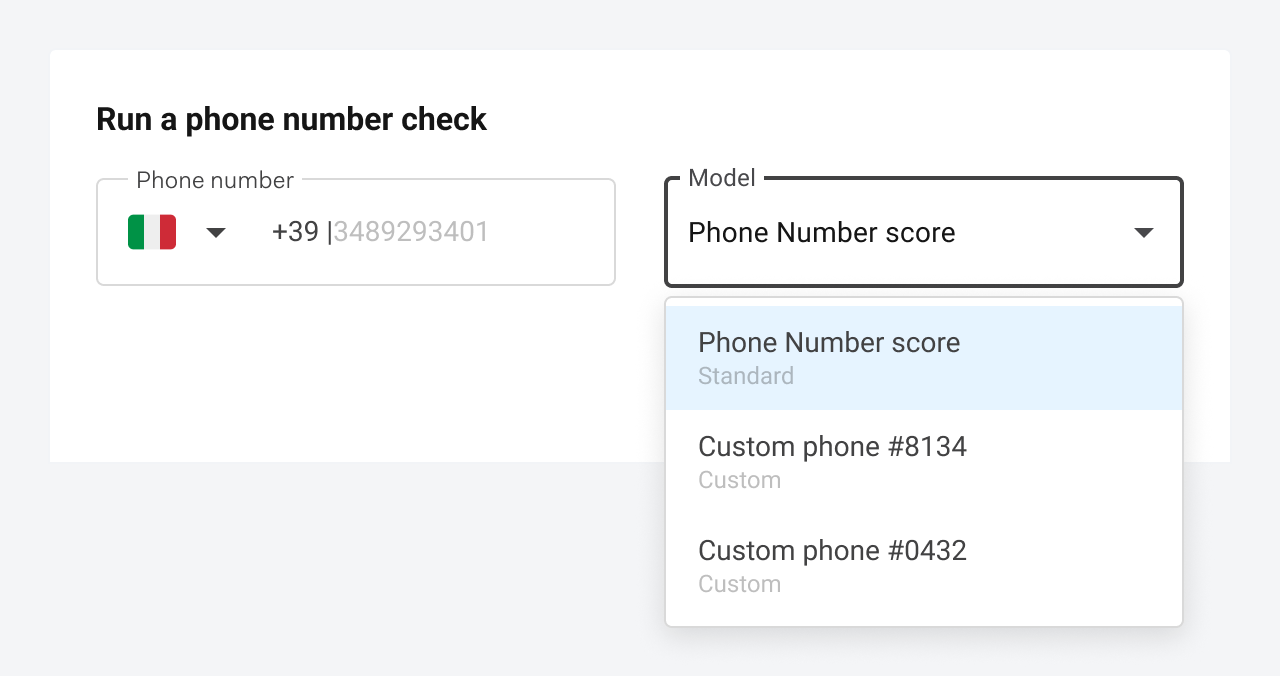
Publishing a model makes it the active model, and the active model scores everything by default. You do not have to accept that default on every request: you can select the model you want, one request at a time, by passing its model_id.
This is what lets you run a new model on part of your traffic before publishing it, keep different flows on different models, or re-score the same data with two models and compare the results.
Where you can pass a model
| Where | How | What happens without it |
|---|---|---|
| API call | An optional model_id field in the request body. | The active model for that product scores the request. |
| Upload | An optional model_id column in the CSV, one model per row. | Every row is scored by the active model. |
| Run Check | The Model dropdown next to the input field. | The active model is pre-selected. |
Available on Onboarding, Phone, Email, IP, Domain and Document.
In an API call
Add model_id to the body of your request. The response always returns the model_id that computed the score, whether you asked for one or not, so you can always tell which model answered.
{
  "claims": [
    "email"
  ],
  "email": "[email protected]",
  "model_id": "your-model-id"
}
Which models you can use
Three rules apply wherever you pass a model:
- It must belong to the same app key as the request.
- It must be compatible with the product you are calling. A model built for Phone cannot score a Domain request.
- It does not have to be active. An inactive custom model works exactly like the active one when you name it explicitly, which is what makes testing before publishing possible.
Standard models can be named too, not only the ones you built.
Where do I find the id of a model?In the Models Library, on the row of each model. The Library also shows which products a model supports.
If the model cannot be used
The request is refused and no credit is spent:
| Response | What it means |
|---|---|
Model not found for this app key. | The id does not match any model of the app key you are calling with. |
Model not compatible with this product. | The model exists but was built for a different product. |
The model_id must not be empty. | The field was sent empty or null. Leave it out entirely to use the active model. |
Seeing which model scored a request
Every request list has a Model column showing the model that scored each row, and a Model filter to narrow the list to one model. The same name appears on the request detail page. The name shown is always the model's current name, so renaming a model updates its past requests too.
Deleting Models and Training Sets
To delete a custom model, click the context menu on any row in the Model Library and select Delete. Standard models cannot be deleted.
To delete a training set, click the context menu in the Training Sets page and select Delete. If the training set is linked to an existing insight or model, deletion is blocked and delete the associated insights and models first.
📚 Resources
- Support Center — Assistance and answers from the Trustfull team.
- Model Insights — Learn how to generate and read model insights.
- Training Sets — How to upload and manage training sets.
Updated about 20 hours ago