
Insights
The Insights page gives you a full performance analysis of a Trustfull model against your labelled data. It shows how well the model's scores matched real-world outcomes across your traffic, and lets you simulate the effect of changing the reject threshold on fraud detection, approval reduction, and false positive rates.
Generating insights requires at least one Training Set uploaded under the same App Key. See Training Sets for instructions on how to upload one.
How to Run Insights
Generating an insight takes three steps: select the app key and training set you want to analyse, choose the model to run the analysis against, and confirm. Results are ready in the Insights list once processing completes.
Open the Run Insight modal
From the Insights page, click Run Insights in the top right corner.
Generating insights may take up to 5 minutes. Once completed, the results will appear in the Insights list.
Select App Key, Training Set, and Model
In the Run Insight modal, provide:
- Select App Key: the app key associated with your training set
- Select Training Set: choose from the training sets uploaded under that app key
- Select Model: choose the Trustfull model to run the analysis against
Only models matching the product of the selected training set are available. For example, if your training set contains Session lookups, only Session models will appear.
If no training sets are available for the selected app key, you will be prompted to upload one first.
Run and view results
Click Run Insight. Once processing is complete, the insight appears in the list. Click the magnifying glass icon to open the full insights page.
Reading the Insights Page
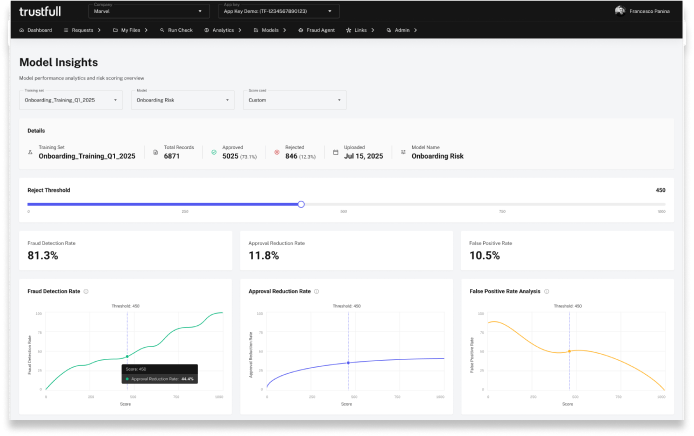
At the top, a summary bar shows the training set name, total records, number of approved and rejected records, upload date, and the model used.
Reject Threshold and Key Metrics
The Reject Threshold slider controls the score below which Trustfull recommends taking action (rejecting or requesting additional verification). The standard threshold is 450, meaning any lookup with a score below 450 is flagged for review.
The three metric cards update as you move the slider:
- Fraud Detection Rate: the percentage of fraudsters detected out of all fraudsters in the training set, for the selected threshold
- Approval Reduction Rate: the percentage of total traffic blocked for the selected threshold
- False Positive Rate: the percentage of legitimate records flagged as fraudulent out of all OK records for the selected threshold
To simulate a different threshold, change the Scorecard setting from Standard to Custom and drag the slider. For example, raising the threshold from 450 to 550 will typically increase the fraud detection rate, but will also increase the approval reduction rate and the false positive rate.
Remove Spam
Some records can never belong to a genuine customer, such as a disposable phone number or an invalid email format, and they are flagged as spam when the training set is processed. Click Remove spam and the insight is recalculated without those records, charts and counters included, so you see how the model performs only on customers who could actually be real.

A table lists the records that were set aside, each with the reason it was flagged and a link to the original request. A record is flagged as spam when it is labelled ok and at least one of these is true:
| Signal | Flagged when |
|---|---|
| Email format | The email address has an invalid format. |
| Email disposable | The email address is disposable. |
| Email reputation | The email address is known for spam activity. |
| Phone format | The phone number has an invalid format. |
| Phone disposable | The phone number is disposable. |
The switch is greyed out, why?Either the training set is clean and there is nothing to remove, or the insight was created before spam was measured. In the second case, run the insight again.
Other Charts
The insights page includes several charts to help you interpret the results
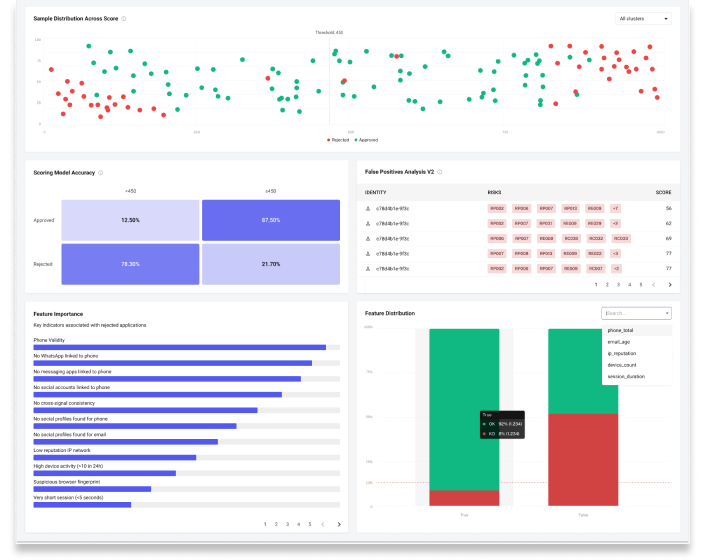
- Score Distribution: three charts (Fraud Detection Rate, Approval Reduction Rate, False Positive Rate Analysis) plot each metric across the full score range (0 to 1000), with a vertical line marking the current threshold
- Sample Distribution Across Score: a scatter plot showing how OK and KO records were distributed across the score range. KO records should cluster on the lower end, OK records on the higher end. Click any dot to open the corresponding lookup.
- Score Cluster Distribution: a breakdown of how records are distributed across score clusters (Poor, Bad, Moderate, Good, High)
- Scoring Model Accuracy: a matrix showing, for each cluster, the percentage of OK and KO records. For example, if 96% of records in the Good cluster were labelled OK, the model is correctly identifying low-risk users in that range.
- False Positives Analysis: a table listing records flagged as fraudulent but labelled OK, with customer ID, reason codes, and score. Use this to identify patterns and refine your threshold or model configuration.
- Feature Importance and Feature Distribution: the signals most associated with rejected applications ranked by impact, and how those features are distributed across approved and rejected records.
Managing Insights
From the Insights list, use the icons on each row to:
- View (magnifying glass icon): open the full insights page for that entry
- Delete (bin icon): permanently remove the insight
You can filter the list by Training Set or Model using the dropdowns above the table.
Updated 2 days ago