
Integration
Session Technical Implementation Guide
1. Install the JavaScript Snippet
To get started with Trustfull, paste the following JavaScript code before your website's closing </head> tag. When using this JS, remember to replace YOUR-JS-KEY with the ID of the environment to which you want to send data. You can find this ID on your dashboard.
<script>
   (function(f,i,d,o,c,od,e){f['FidoObject']=c;f[c]=f[c]||function(){
        (f[c].q=f[c].q||[]).push(arguments)},f[c].l=1*new Date();od=i.createElement(d),
        e=i.getElementsByTagName(d)[0];od.async=1;od.src=o;e.parentNode.insertBefore(od,e)
   })(window,document,'script', 'https://det.trustfull.com/det.js', 'tfbd');

   tfbd('create', 'YOUR_APP_KEY');
</script>Note that the JS SDK is always loaded over SSL.
If you're installing Trustfull on both production and staging versions of your site, be sure to use the JS-KEY that corresponds to the environment in Trustfull you want to send data to. If you send data to the wrong environment, it will pollute the data in that environment.
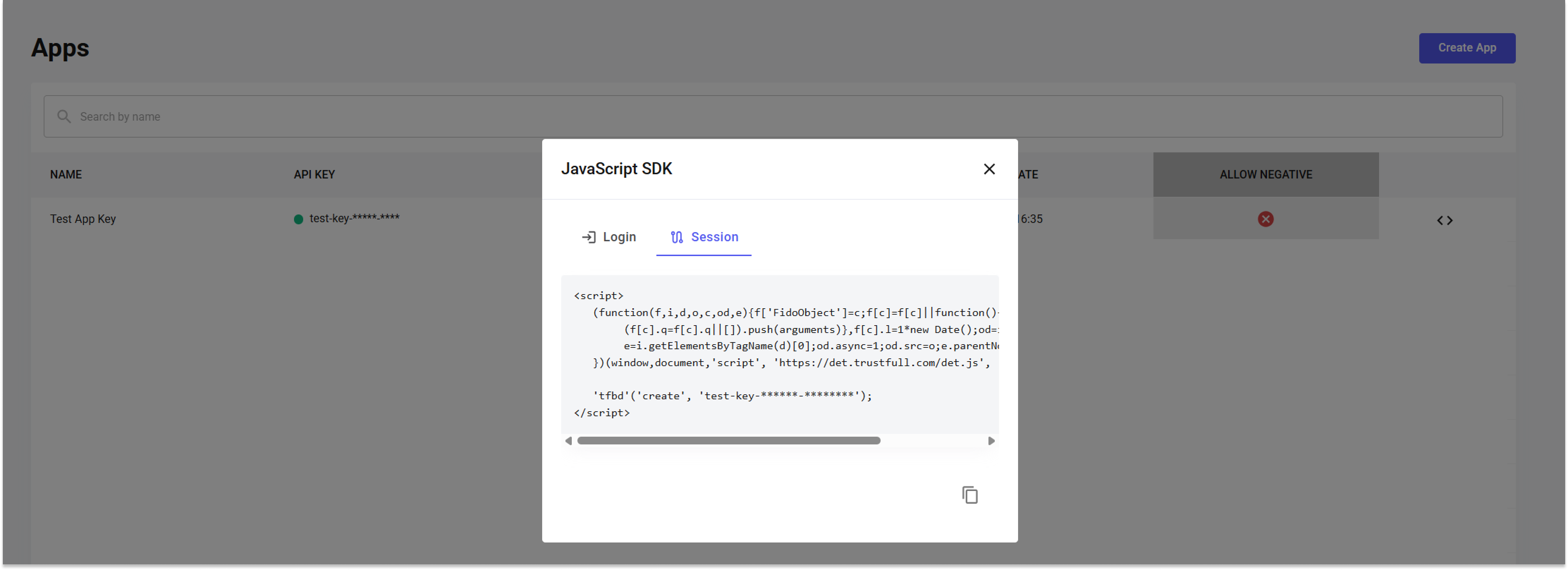
In the App section you can find the SDK prefilled 👇

2. Trigger Data submission
When ready (e.g., after a user action), call the following function to submit the collected data:
det.sendRecord(`{YOUR_SESSION_ID}`)This function can be invoked at any time during the user session. You may choose to trigger it after meaningful user actions, such as form submissions, login attempts, or critical workflow steps. Alternatively, it can be executed immediately after the page loads or in the background when specific conditions are met. This flexibility allows you to align bot detection with your application's business logic and user journey.
3. Retrieve Results (Server-To-Server API)
Once the data is processed, a server-to-server API call will be performed using the session ID to obtain the detection results. Example request
curl -X GET "https://api.trustfull.com/bot-detection/result`{YOUR_SESSION_ID}`" \
     -H "X-api-Key: YOUR_API_KEY" \
     -H "Content-Type: application/json"
For a detailed explanation on how to invoke this API and a full description of the returned fields you can go HERE
The API response will provide a score reflecting the bot activity's likelihood. This score can be used directly in your risk assessment logic. For example, sessions with a score below a certain threshold might be blocked or flagged for manual review, while higher-scoring sessions can be seamlessly allowed. In addition to the score, the response includes the raw data collected, enabling deeper analysis or logging for auditing purposes.
Best Practices
To ensure optimal performance and reliable results from the Bot Detection feature, the following best practices should be followed:
- Generate a Unique Session ID: Always create a unique Session ID for every user session. This ensures that data remains isolated, traceable, and easy to manage when retrieving and analyzing results.
- Trigger Submission at Meaningful Moments: Call
tfbd.sendRecord(sessionId)when it provides the most contextually rich data, such as after a user has completed a form, performed a login attempt, or initiated a transaction. However, since submission can be triggered at any time, consider submitting data also for background monitoring or upon page load when needed. - Interpret Scores Carefully: Define internal thresholds for interpreting bot scores (e.g. low, medium, high risk) and align them with your fraud prevention strategy. Use these thresholds to automate responses such as blocking, adding friction (like CAPTCHA), or flagging for review.
- Leverage Raw Data: Make use of the raw data returned with the score for advanced use cases. This can include audit trails, enriching machine learning models, or correlating session details during fraud investigations.
- Monitor and Iterate: Regularly review how the Bot Detection feature performs. Use collected metrics and incident analysis to tune thresholds, improve submission timing, and refine business rules for handling risky sessions.
Troubleshooting
Typos in the JS SDK
If you received the JavaScript copy/pasted it into an email or another document, it's easy for typographical elements in the JS SDK to get reformatted. For example, you may end up with curly double quotes instead of straight quotes, or + signs may have been stripped. When in doubt, copy/paste the JavaScript directly from the developer documentation into your app.
Other
If you've double-checked all of the reasons above and are still having trouble, reach out to [email protected] with full-screen screenshots of the developer console on both tabs or a video of what you are experiencing.
Missing JS-KEY
When copying/pasting the JS SDK, be sure you have code that includes your JS-KEY in the Trustfull init call. If you get the JavaScript from the install page after you sign up, or from our developer docs while logged in, this won't be a problem. However, if you copy a version while logged out, you might end up with a code that won't work.
Example:
det("create", "YOUR-JS-KEY"); Updated 16 days ago